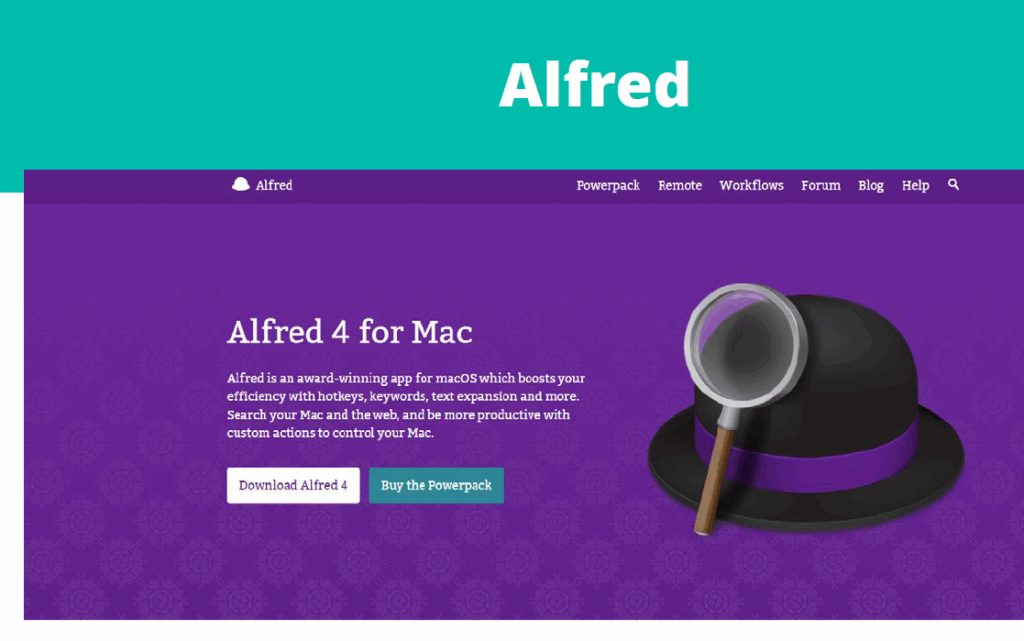
Text snippets are shortcuts that work across apps and can be used to quickly input emails, responses, or frequently used phrases. Once set, typing the shortcut will suggest the expanded text, which you can tap to insert.
Main use cases for use of text replacement tools
#1 – when we often type the same phrases such as our phone number, our e-mails, our homepage link
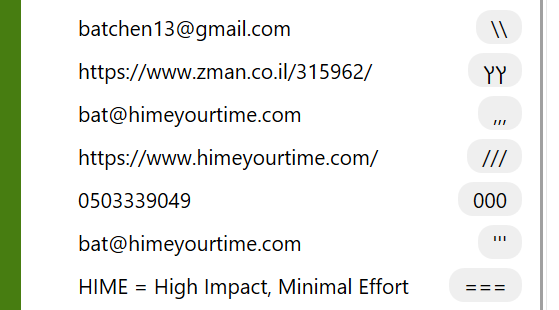
#2 – links we often share – instead of copying and pasting those same links over and over again, we create an abbreviation shortcut and links appear on our screens immediately
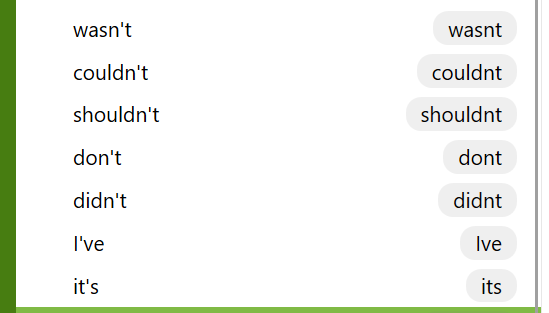
#3 – Lazy typing – instead of typing Apostrophize ‘ , I create a snippet that will appear automatically so I can type faster
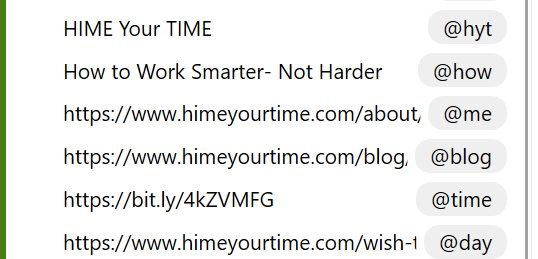
#4 – Marketing , Sales, Biz-dev, or social activism purposes when hitting the right message at the right time is crucial for its success. We can be ready with our ” Balls in the barrel” for opportunities for the right message to pop up in the right time. We create an abbreviations for a text + link , and it’s ready to be shot out in its right timing for maximum impact and lead Gen.
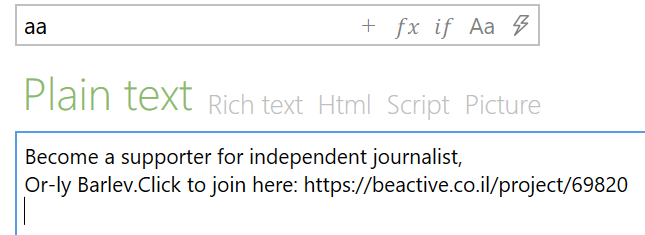
Example #4 for social activism:
I help generate donations for an independent journalist in Israel who is a key role player in the civil battle for democracy. This text, sending crowds to support her work is ready to pop whenever she publishes an original post or article, generating new supporters.
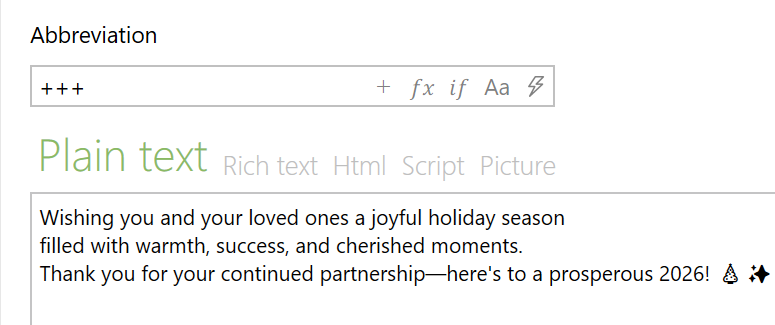
#5 – Occasional messages – perhaps a snippet for the holidays, making it quick and easy to send out your holiday greetings?
Note: if you haven’t yet used a text replacement tool, start with only 3 abbreviations, see that you have memorized them and have used them often and only then begin adding more.
Here's how to set it all up
Android Mobile:
Text shortcuts on Android mobile devices are a way to quickly expand abbreviations into longer phrases, saving time during typing
Samsung Keyboard:
• Open Settings > General Management > Samsung Keyboard Settings > Text Shortcuts.
• Tap the plus (+) icon, enter your shortcut and the expanded phrase, then save
Gboard (Google Keyboard):
• Settings > Dictionary > Personal Dictionary > Select your language.
• Tap the plus (+) icon, input your phrase and shortcut, then save
Iphone Mobile:
Access the feature through Settings > General > Keyboard > Text Replacement.
Here, you tap the “+” sign to add a new shortcut, enter the phrase you want to expand, and assign a short shortcut for it
PC windows
Search for the A-text tool , open, minimize, pin to taskbar.
Now start creating your snippets

Mac
Search for Alfred tool , pin it and start creating 3 snippets that will be most often used